If you use IP cameras from different brands, a simple live view can turn into a tour of vendor apps and complicated surveillance software. For a home, workshop or small office, you often do not need a full NVR just to check a camera from a Windows PC.
This guide shows how to use Rekami, formerly ReCam Viewer, to find a compatible camera on your local network, test its RTSP stream and save it for later.
What you need
- A Windows PC connected to the same local network as the camera.
- A powered-on camera with RTSP or ONVIF enabled.
- The camera username and password, if authentication is required.
- Rekami installed from Microsoft Store.
If you already know the camera’s RTSP URL, you can enter it directly. Otherwise, start with discovery.
1. Open the camera wizard
In Rekami, open the camera area and choose to add a camera. The wizard offers two paths: search the local network or enter a stream URL manually.
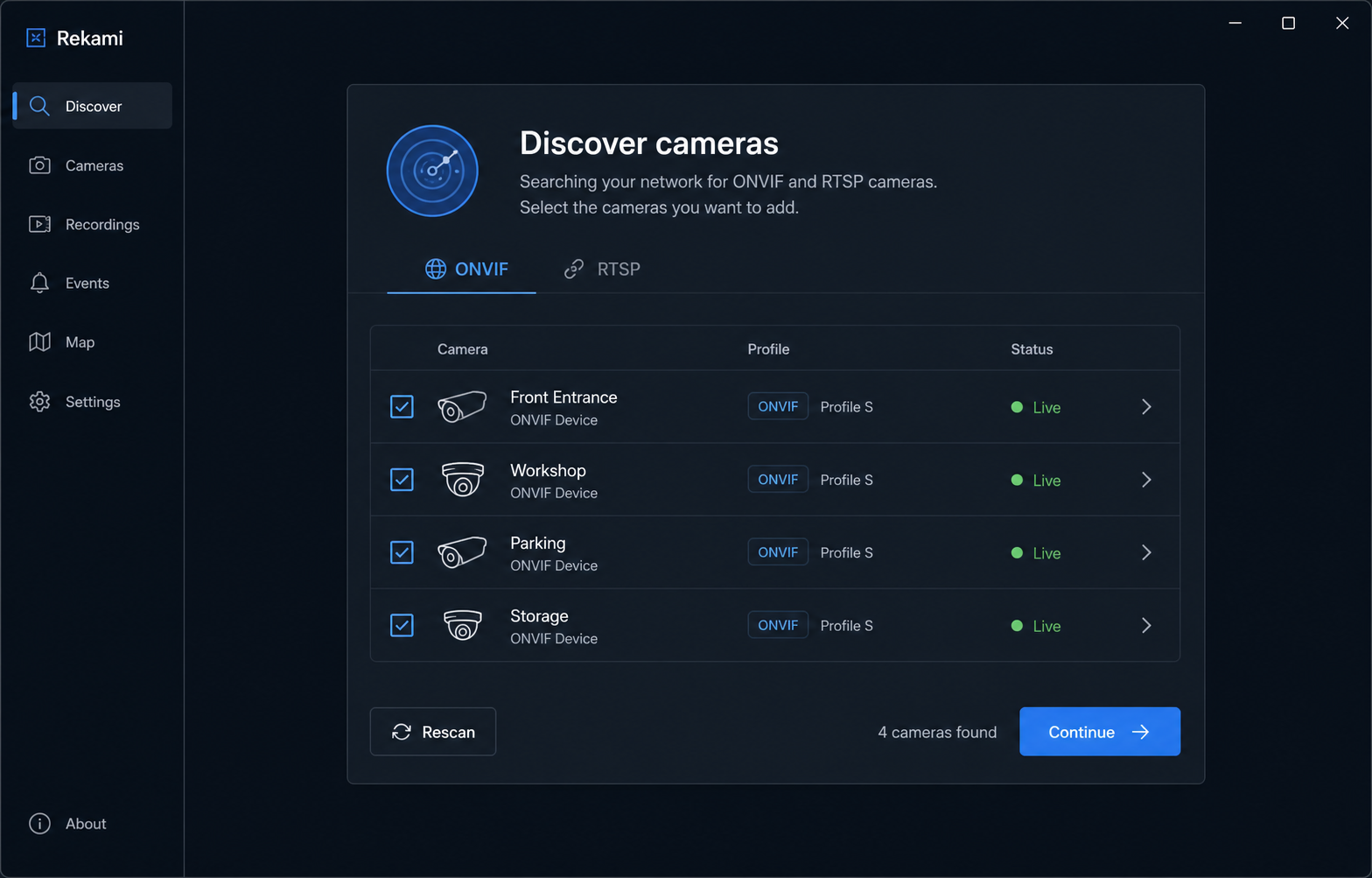
Choose discovery when you do not know the device address or RTSP path. Choose manual setup when the camera documentation already provides a URL.
2. Search your local network
Rekami checks for compatible devices and presents the candidates it can identify. ONVIF information can help identify a device and its available profiles; playback still uses an RTSP stream.
Select the candidate that matches your camera. If several devices appear, verify the model or address in the camera’s own administration page before continuing.
3. Enter credentials and test the stream
Enter the local camera credentials and test the connection before saving it. A successful preview confirms that the address, credentials, stream path and codec work together.
Never paste camera credentials into a public screenshot or support post. Rekami keeps them on your device, but anything visible in a screenshot can still be shared accidentally.
4. Save and organize the camera
Give the camera a useful name such as “Front entrance” or “Workshop.” Once saved, it becomes part of your local camera list and can be opened without entering the URL every time.
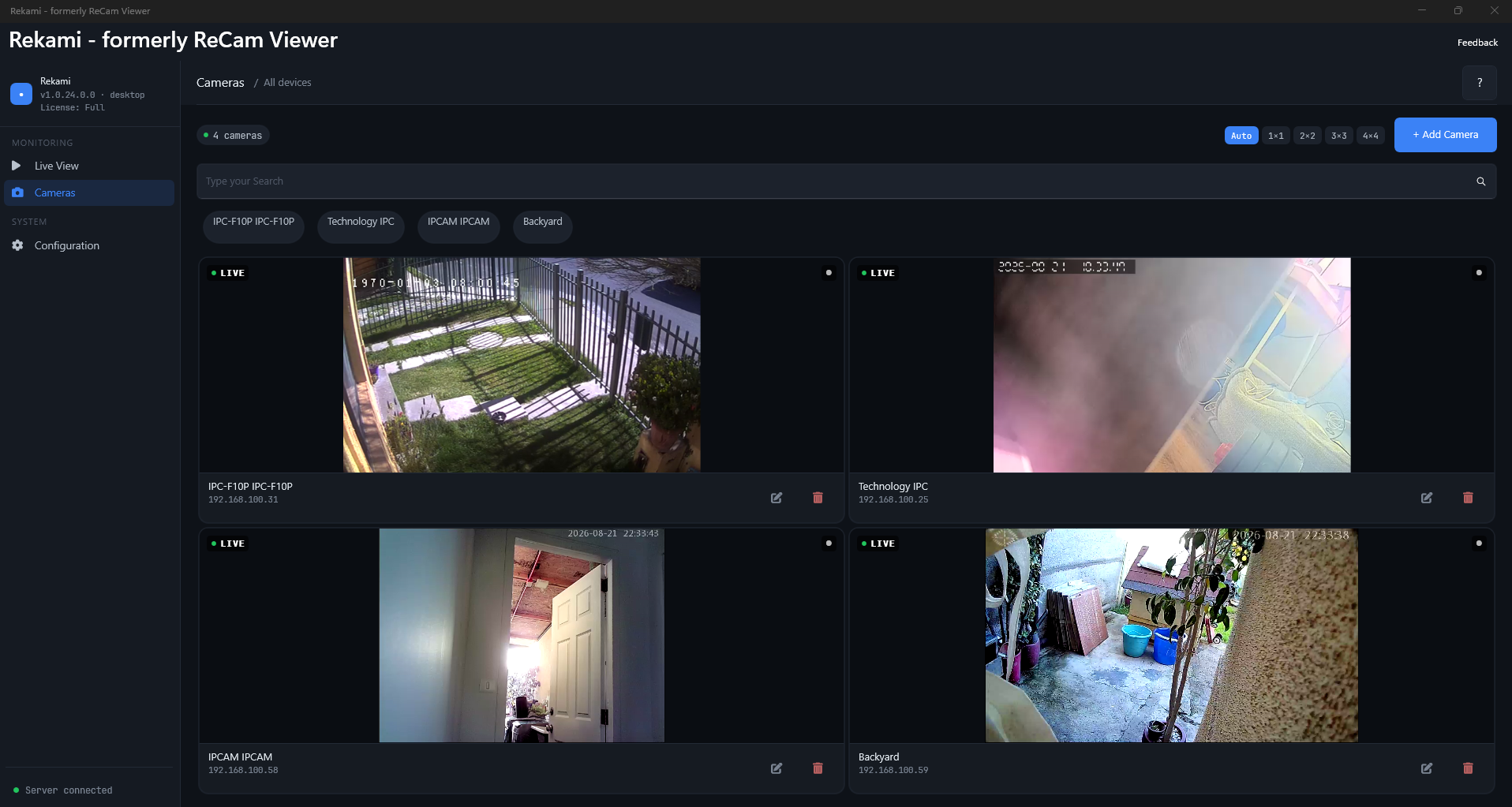
For a small setup, the multi-camera view gives you the useful part of an NVR dashboard without requiring a dedicated server.
5. Record or take a snapshot
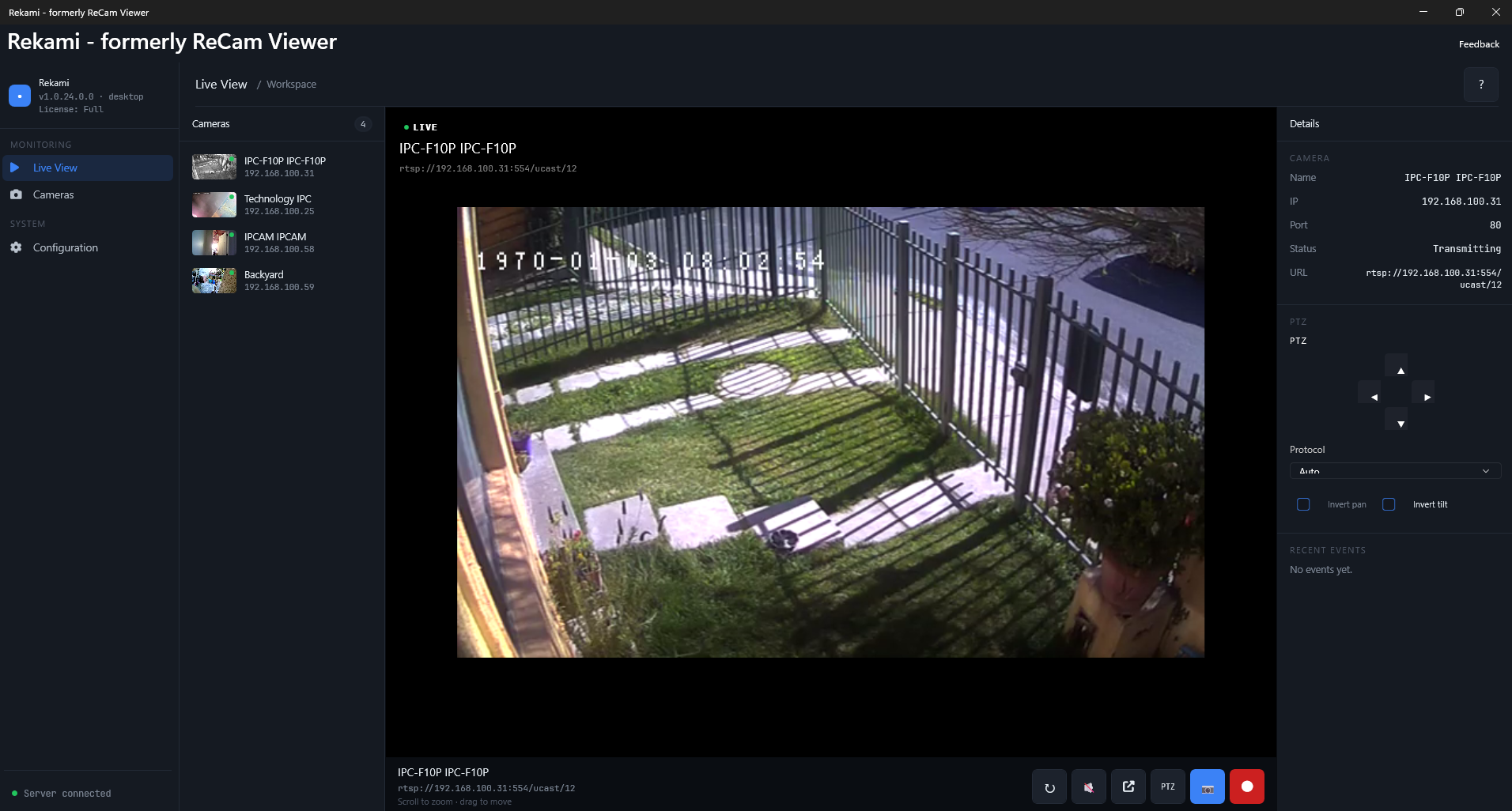
From the live view you can save a local recording or capture a still image. Rekami writes those files to the Windows location you choose; it does not upload the footage to a Rekami cloud.
Troubleshooting
If discovery finds nothing, first confirm that the PC can open the camera’s administration page and that both devices are on the same LAN. Some cameras require ONVIF or RTSP to be enabled explicitly.
If the device appears but the preview fails, check the username, password and RTSP path. Many cameras expose separate main and sub streams with different paths or codecs. A lower-resolution sub stream is often useful for testing.
If playback disconnects later, verify Wi-Fi stability, firewall rules and whether the camera address changed. Assigning the camera a stable DHCP reservation can prevent address changes.
When an NVR is the better choice
Choose a full NVR when you need continuous scheduled retention, motion rules, automatic alerts, multiple users or a large installation. Rekami is intentionally focused on local discovery, organized viewing, snapshots and straightforward recording for a small number of cameras.